> ## Documentation Index
> Fetch the complete documentation index at: https://docs.testbrick.com/llms.txt
> Use this file to discover all available pages before exploring further.
# Slack & email alerts
> Send monitor alerts to your inbox or a Slack channel
# Slack & email alerts
## Email
Monitors email your account address by default. Untick **Email me** on a monitor to stop its emails.
## Connect a Slack channel
In Slack, add an [Incoming Webhook](https://api.slack.com/messaging/webhooks) for the channel you want alerts in, and copy its link (it starts with `https://hooks.slack.com/services/`).
On the **Monitors** page, click **Alert channels**. Enter the channel name (for example `#qa-alerts`), paste the link and click **Connect**.
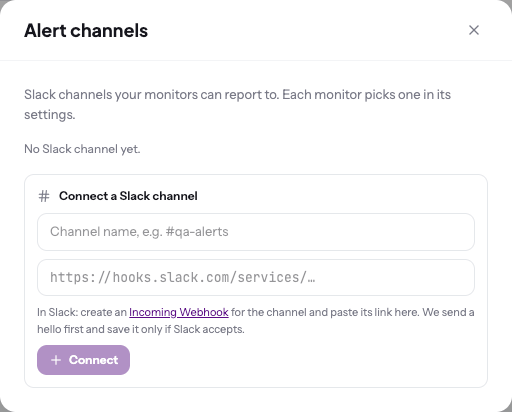 TestBrick sends a hello message first, and saves the channel only if Slack accepts it.
Each monitor chooses its Slack channel under **Where** in its settings.
Send **Breaks and recoveries** to your team channel and **Every run** to a separate quiet channel, so real alerts don't get buried.
This documentation is built and hosted on [Mintlify](https://mintlify.com), a developer documentation platform.
TestBrick sends a hello message first, and saves the channel only if Slack accepts it.
Each monitor chooses its Slack channel under **Where** in its settings.
Send **Breaks and recoveries** to your team channel and **Every run** to a separate quiet channel, so real alerts don't get buried.
This documentation is built and hosted on [Mintlify](https://mintlify.com), a developer documentation platform.