> ## Documentation Index
> Fetch the complete documentation index at: https://docs.testbrick.com/llms.txt
> Use this file to discover all available pages before exploring further.
# Building tests with Bricklayer
> How TestBrick's AI builder turns a plain-words brief into a test
# Building tests with Bricklayer
Bricklayer is the AI that builds your browser tests. You tell it what to test; it drives a real browser, records each step it takes, and hands you a test that TestBrick can replay without any AI.
## Writing a good brief
Write the flow the way you'd explain it to a new teammate. One line per step works well.
```
Sign up with a new account.
Verify the email.
Create a project called "Launch plan".
Check the project appears on the dashboard.
```
Tips:
* **Say how it ends.** "Check the order confirmation page shows the order number" gives Bricklayer something clear to prove.
* **Give logins it needs** — or better, store passwords, PINs and authenticator keys as [Secrets](/ui-testing/secrets) and just name them.
* **Leave out the email.** If a flow needs an email address, Bricklayer uses a TestBrick inbox so it can read the code or link that arrives. See [Email & codes](/ui-testing/email-otp).
* **One journey per test.** "Sign up" and "change password" are two tests.
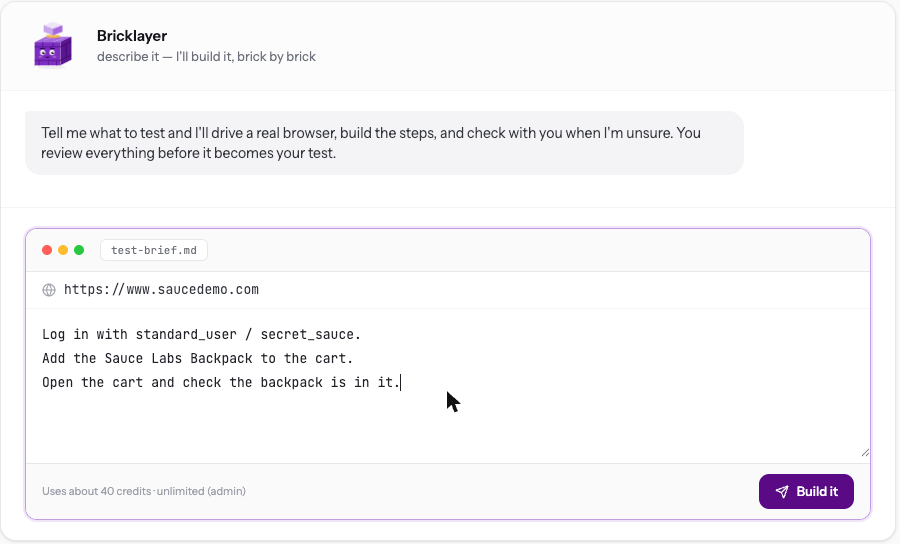 The brief box shows roughly how many [AI credits](/account/ai-credits) a build uses.
## While it builds
The brief box shows roughly how many [AI credits](/account/ai-credits) a build uses.
## While it builds
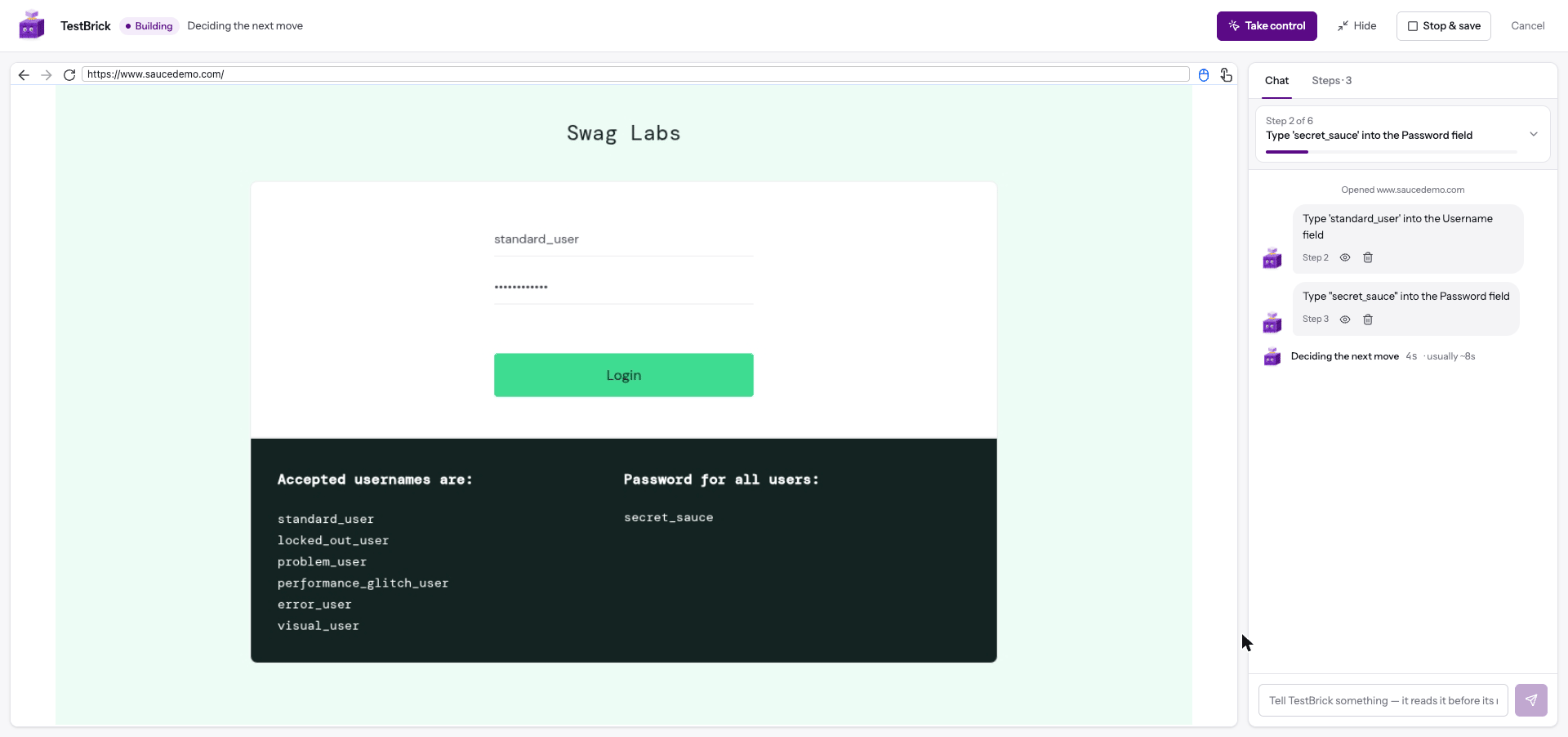 * **The live browser** on the left shows what Bricklayer is doing right now.
* **The chat** on the right lists each step it saved. Click the eye to see the page at that step; click the bin to drop a step you don't want.
* **Type in the chat** to steer it — "use the second product instead", "the button is under the menu". It reads your message before its next move.
* **When it's stuck**, it says exactly what's confusing it and asks you.
* **Take control** lets you do a tricky part yourself in the live browser — a hard-to-reach menu, a drag-and-drop. Your steps are saved too, marked "you did this". Hand back when you're done.
* **Stop & save** ends the build early and keeps the steps so far.
* **Hide** tucks the build away; it keeps going and you can come back to it.
Bricklayer never pays, sends money or deletes things on its own initiative beyond what your brief asks for.
## Confirming the checks
When it's done, Bricklayer shows how it will prove the flow still works on every future run — usually where the flow ends and what the final page shows. Keep the checks you agree with.
It also lists the values it typed. Switch a value to **unique each run** when your app only accepts it once (a new email, username or phone number on a sign-up). Leave logins exact — the same account is the point there.
Click **Save & verify my test**.
## The first replay
TestBrick then replays the new test once, straight away, without Bricklayer. This proves the test runs on its own.
* **The live browser** on the left shows what Bricklayer is doing right now.
* **The chat** on the right lists each step it saved. Click the eye to see the page at that step; click the bin to drop a step you don't want.
* **Type in the chat** to steer it — "use the second product instead", "the button is under the menu". It reads your message before its next move.
* **When it's stuck**, it says exactly what's confusing it and asks you.
* **Take control** lets you do a tricky part yourself in the live browser — a hard-to-reach menu, a drag-and-drop. Your steps are saved too, marked "you did this". Hand back when you're done.
* **Stop & save** ends the build early and keeps the steps so far.
* **Hide** tucks the build away; it keeps going and you can come back to it.
Bricklayer never pays, sends money or deletes things on its own initiative beyond what your brief asks for.
## Confirming the checks
When it's done, Bricklayer shows how it will prove the flow still works on every future run — usually where the flow ends and what the final page shows. Keep the checks you agree with.
It also lists the values it typed. Switch a value to **unique each run** when your app only accepts it once (a new email, username or phone number on a sign-up). Leave logins exact — the same account is the point there.
Click **Save & verify my test**.
## The first replay
TestBrick then replays the new test once, straight away, without Bricklayer. This proves the test runs on its own.
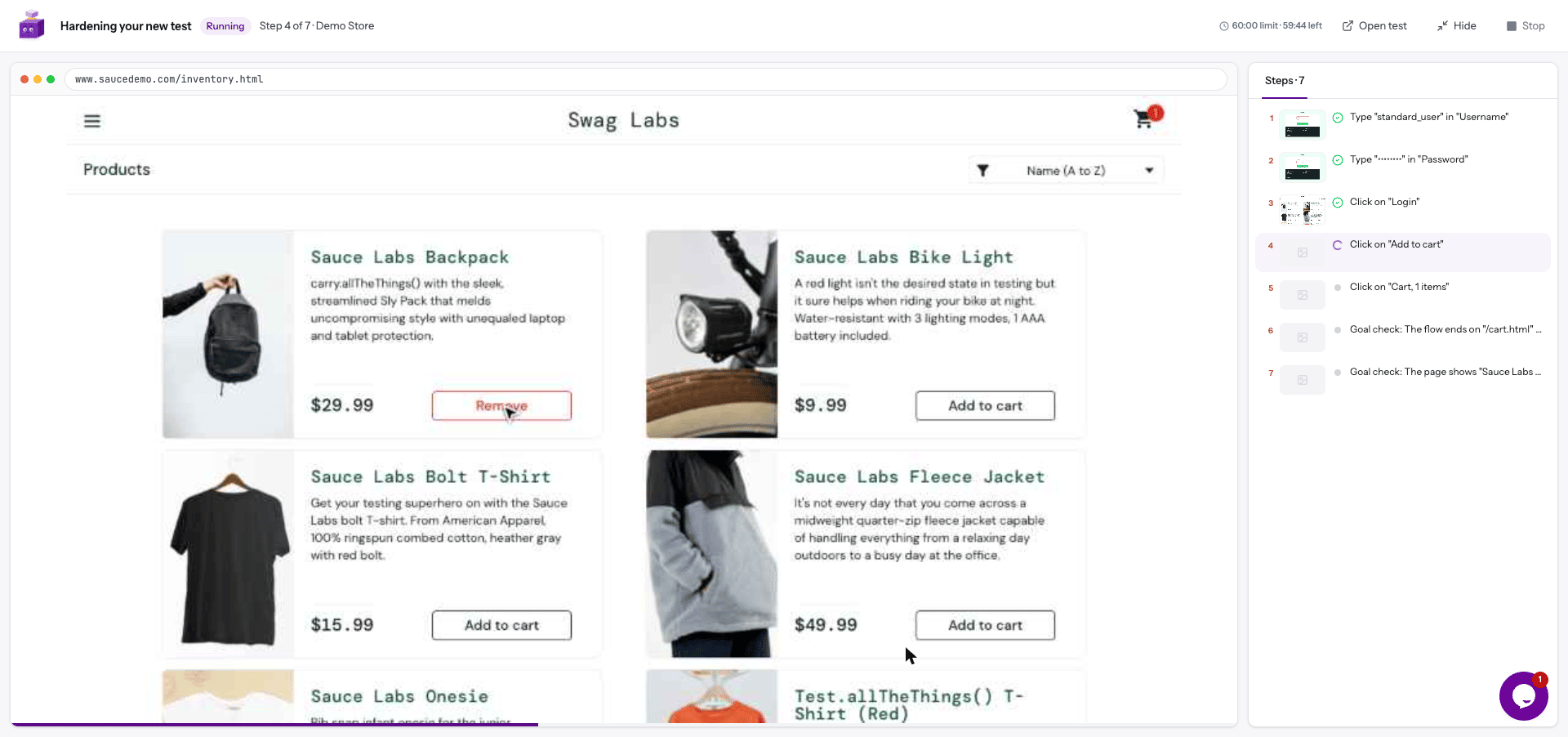 * **Green** — your test is saved and ready.
* **A check failed** — you see which one and why, and can fix it before relying on the test.
## Stages
Bricklayer also saves the **stages** of your flow — for example "log in", "add to cart", "open the cart" — with how to tell each one is done. They appear as headers above the steps.
* **Green** — your test is saved and ready.
* **A check failed** — you see which one and why, and can fix it before relying on the test.
## Stages
Bricklayer also saves the **stages** of your flow — for example "log in", "add to cart", "open the cart" — with how to tell each one is done. They appear as headers above the steps.
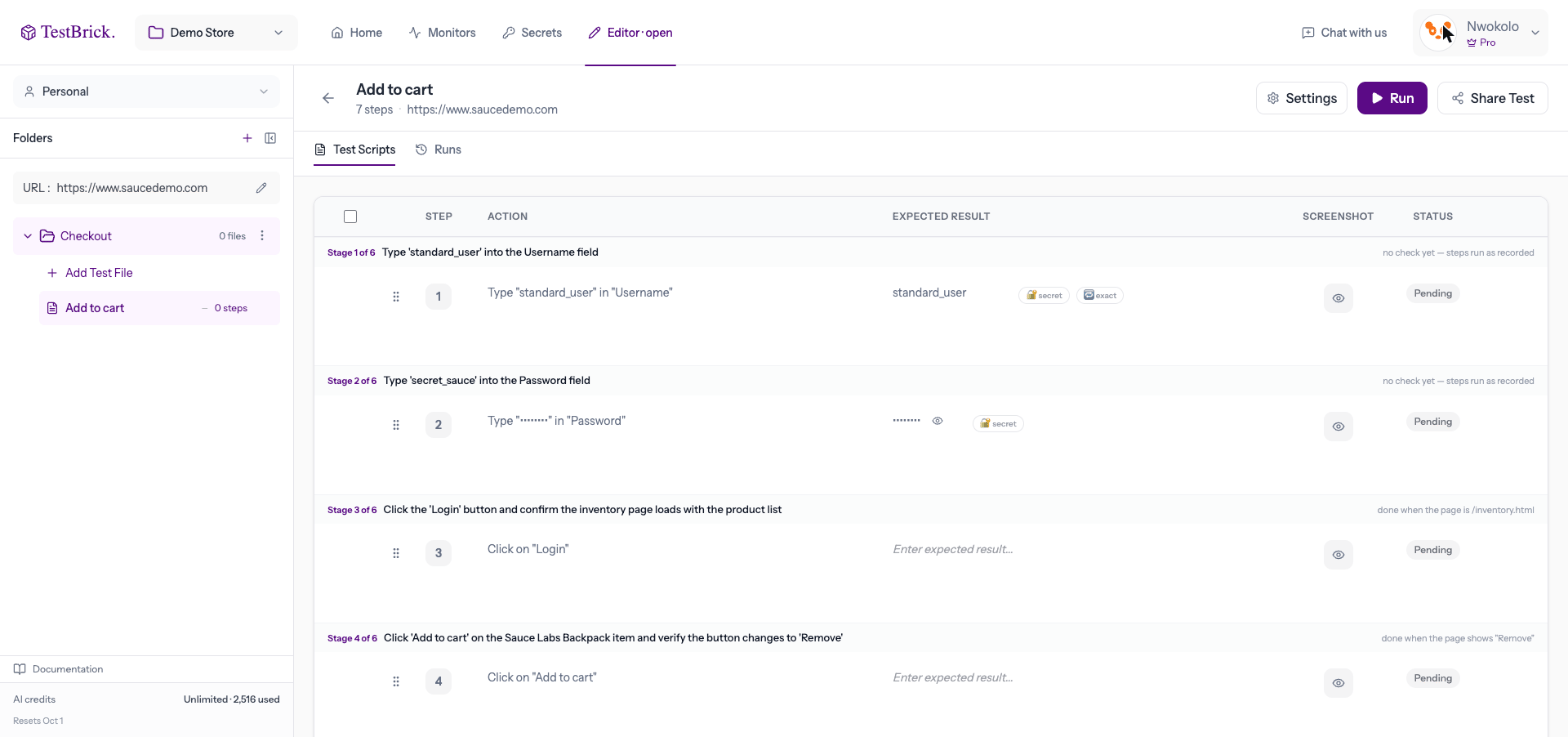 Stages help later runs stay honest:
* If your app changes and a stage is already done (say, a welcome screen was removed), its leftover steps are skipped instead of failing.
* If a run can't get past a stage, the result says "stuck at stage 3 of 5" instead of a vague error.
* If a run finds a new way through a stage, it offers to **save the new way** — you decide.
This documentation is built and hosted on [Mintlify](https://mintlify.com), a developer documentation platform.
Stages help later runs stay honest:
* If your app changes and a stage is already done (say, a welcome screen was removed), its leftover steps are skipped instead of failing.
* If a run can't get past a stage, the result says "stuck at stage 3 of 5" instead of a vague error.
* If a run finds a new way through a stage, it offers to **save the new way** — you decide.
This documentation is built and hosted on [Mintlify](https://mintlify.com), a developer documentation platform.