> ## Documentation Index
> Fetch the complete documentation index at: https://docs.testbrick.com/llms.txt
> Use this file to discover all available pages before exploring further.
# Secrets & 2FA codes
> Store authenticator keys, PINs and passwords once — tests type them by name
# Secrets & 2FA codes
Some flows need things you shouldn't paste into a test: a password, a transaction PIN, or a code from an authenticator app. Store them once as **Secrets** in your project. Tests then type them by name — and for authenticator codes, TestBrick makes a fresh code at the moment the test needs it.
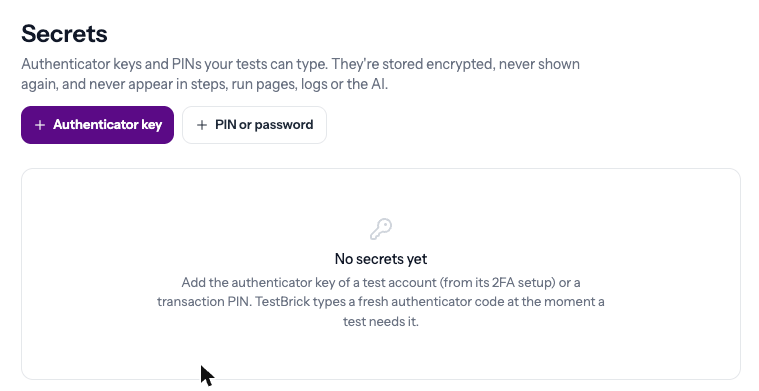 Secrets are stored encrypted. After you save one, its value is never shown again — not in steps, run pages, share links, logs, or to the AI.
## Add an authenticator key
Use this when your app asks for a 6-digit code from Google Authenticator, Authy or similar.
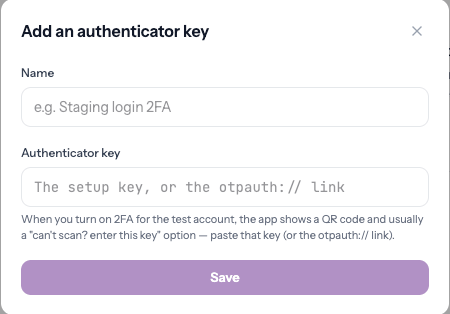
On the test account, turn on two-factor authentication. The app shows a QR code, and usually a **"Can't scan? Enter this key"** option. Copy that key — or the `otpauth://` link.
Open **Secrets** at the top of the dashboard, click **Authenticator key**, give it a name (for example "Staging login 2FA") and paste the key.
Secrets are stored encrypted. After you save one, its value is never shown again — not in steps, run pages, share links, logs, or to the AI.
## Add an authenticator key
Use this when your app asks for a 6-digit code from Google Authenticator, Authy or similar.
On the test account, turn on two-factor authentication. The app shows a QR code, and usually a **"Can't scan? Enter this key"** option. Copy that key — or the `otpauth://` link.
Open **Secrets** at the top of the dashboard, click **Authenticator key**, give it a name (for example "Staging login 2FA") and paste the key.
 After saving, TestBrick shows the code it would type right now. It should match the code in your authenticator app. If it does, you're set.
Use a test account, not a real person's account. Keep the authenticator app set up too, so a person can still sign in.
## Add a PIN or password
Click **PIN or password**, give it a name (for example "Transaction PIN") and type the value.
## Using secrets in tests
* **Bricklayer uses them by itself.** When a page asks for an authenticator code or a PIN, it types the matching secret. If there's no matching secret, it tells you which one to add.
* **In a step**, click the 🔐 chip next to a typed value and pick a secret. The step shows "Type the authenticator code (Staging login 2FA)" — never the value.
* **Split code boxes** (six separate one-digit boxes) are filled correctly with a fresh code every run.
## Replacing or deleting
Use **Replace** to change a secret's value — every test that uses it picks up the new value on its next run. Deleting a secret that tests still use makes those runs fail with "Step N needs the secret …", so you know exactly what to fix.
This documentation is built and hosted on [Mintlify](https://mintlify.com), a developer documentation platform.
After saving, TestBrick shows the code it would type right now. It should match the code in your authenticator app. If it does, you're set.
Use a test account, not a real person's account. Keep the authenticator app set up too, so a person can still sign in.
## Add a PIN or password
Click **PIN or password**, give it a name (for example "Transaction PIN") and type the value.
## Using secrets in tests
* **Bricklayer uses them by itself.** When a page asks for an authenticator code or a PIN, it types the matching secret. If there's no matching secret, it tells you which one to add.
* **In a step**, click the 🔐 chip next to a typed value and pick a secret. The step shows "Type the authenticator code (Staging login 2FA)" — never the value.
* **Split code boxes** (six separate one-digit boxes) are filled correctly with a fresh code every run.
## Replacing or deleting
Use **Replace** to change a secret's value — every test that uses it picks up the new value on its next run. Deleting a secret that tests still use makes those runs fail with "Step N needs the secret …", so you know exactly what to fix.
This documentation is built and hosted on [Mintlify](https://mintlify.com), a developer documentation platform.