

Data Mapping
Data mapping lets you reference data from previous blocks in your current block. When Block 1 returns a user ID, Block 2 can use it in its URL — automatically.How it works
- Run a block — the response data becomes available as variables
- Type
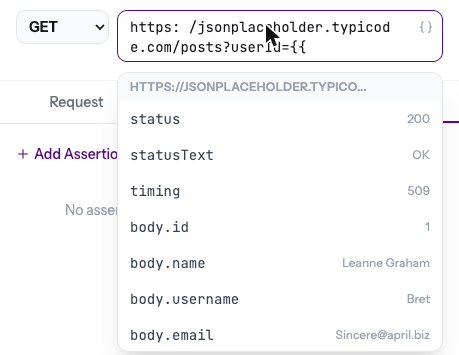
{{in any field (URL, headers, body, auth) — the autocomplete dropdown appears - Pick a value — it inserts the variable reference
- When the flow runs — the variable resolves to the actual value from the previous block’s response
Autocomplete
Type{{ in any input field to open the variable picker:
- Previous block responses — body fields, status, headers
- Environment variables — baseUrl, apiKey, etc.
- Email block values — extracted OTP, email subject, from address
Variable syntax
Variables use double curly braces:{{source.path}}
From previous blocks
From environment variables
From email blocks
Example
Block 1: Create UserYou don’t need to memorize node IDs. The autocomplete dropdown handles this — just type
{{ and pick the value you need.Where variables work
Variables are supported in:- URL field
- Header values
- Request body
- Auth token / API key values