

Your first API flow
API flows chain API requests together on a visual canvas. Data from one request flows into the next.Steps
1
Create an API flow
In a folder, click Add Test File, pick API Flow and name it “User API Test”.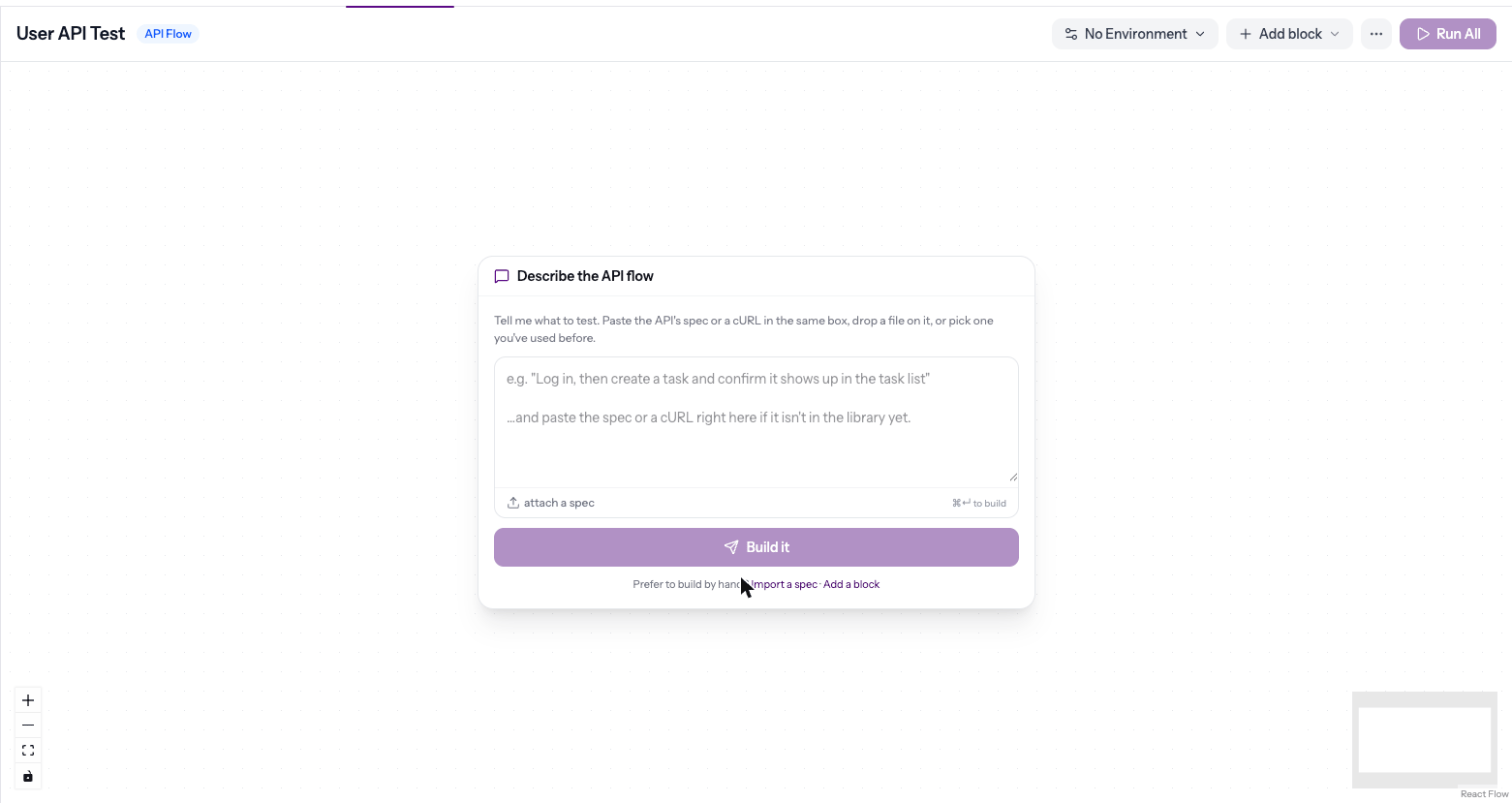
2
Add your first block
Click Add block → API request. The block appears on the canvas and its side panel opens.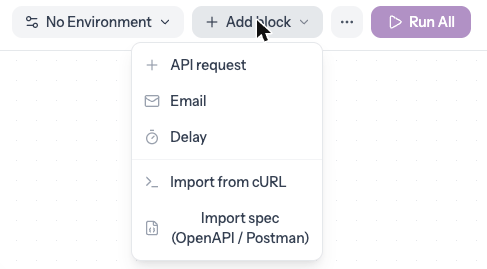
3
Configure the request
In the side panel, set: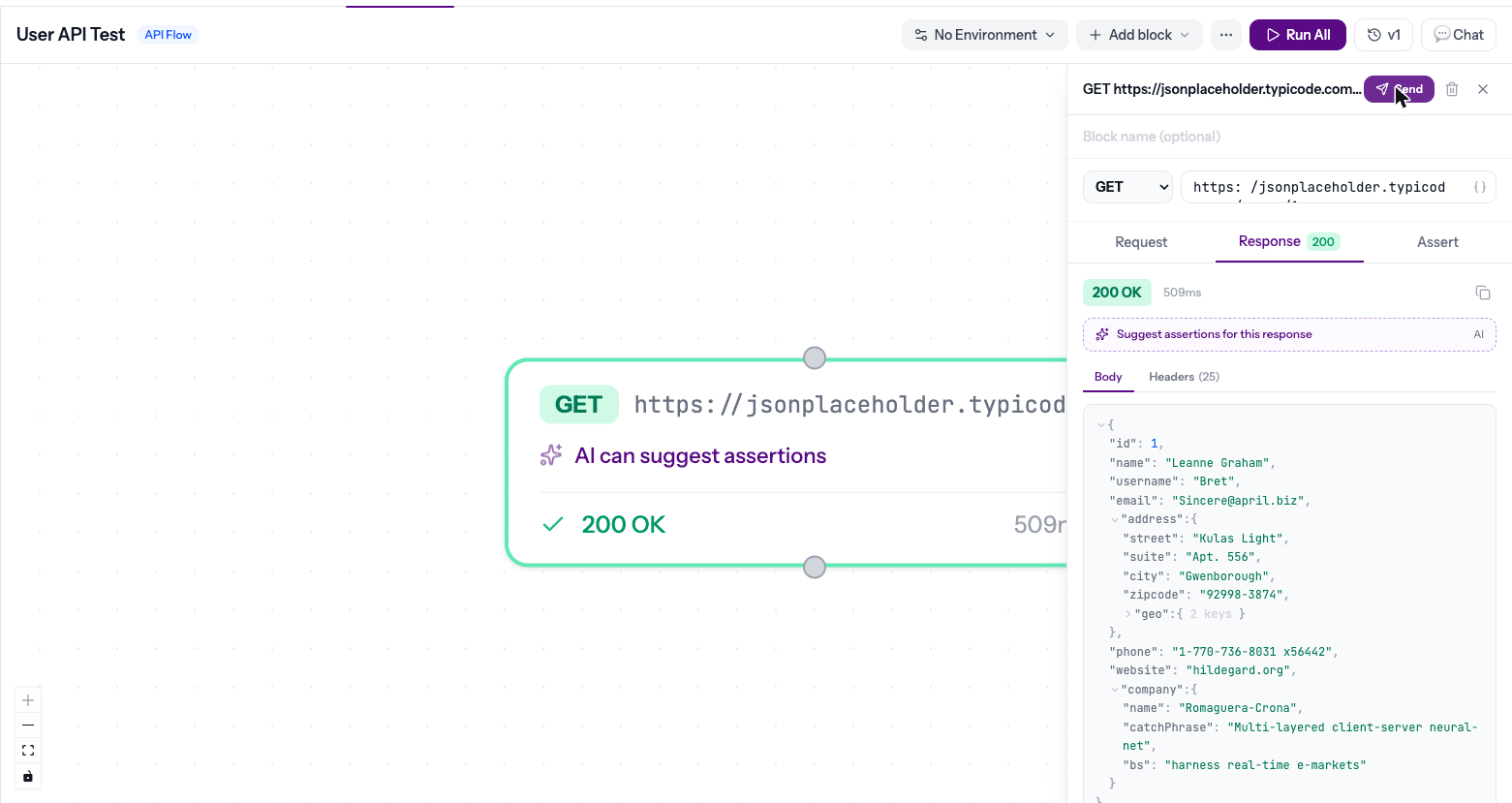
- Method:
GET - URL:
https://jsonplaceholder.typicode.com/users/1
4
Add a check
On the Assert tab, click Add Assertion — Status code equals 200 is a good first check. Or click Suggest assertions and let AI propose some.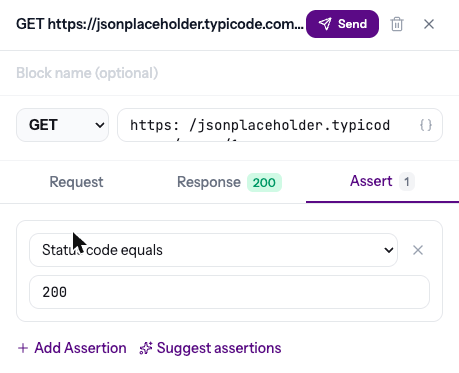
5
Add a second block that uses the first
Click Add block → API request again. It connects to the first block. For the URL, type 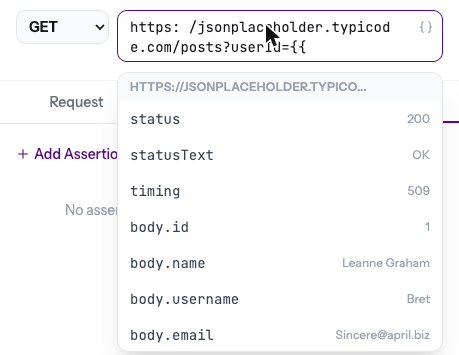
https://jsonplaceholder.typicode.com/posts?userId= and then {{ — pick body.id from the list.6
Run the flow
Click Run All. Each block runs in order and turns green (passed) or red (failed).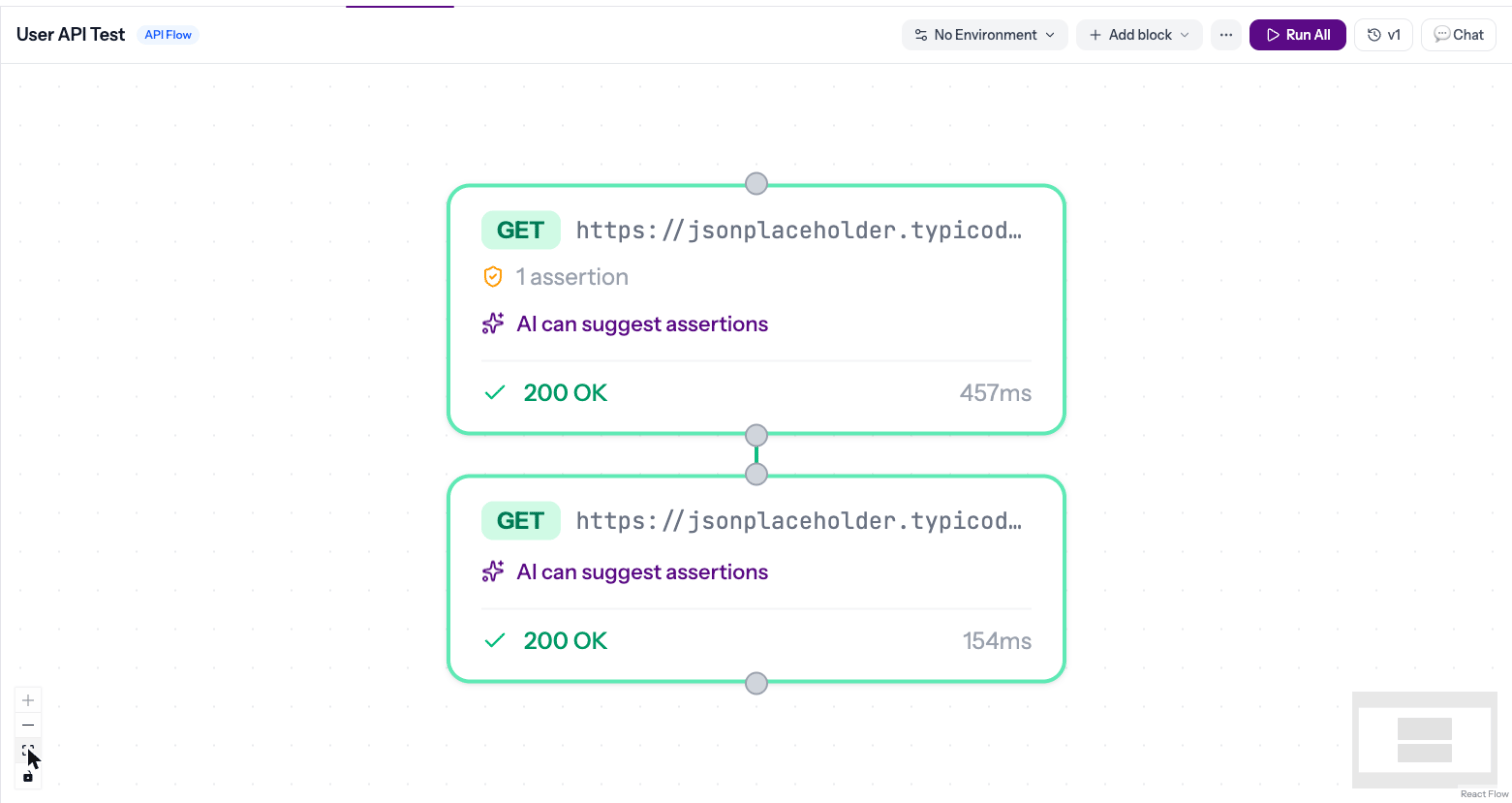
7
Share the results
Open the ⋯ menu and click Copy share link. Anyone with the link can see every request, response and check.
Using data from previous blocks
Type{{ in any field — URL, headers or body — to see the data you can use: values from earlier blocks’ responses and your environment variables, with their real values from the last run.
- URL:
https://api.example.com/users/{{node_abc.body.id}} - Headers:
Bearer {{node_abc.body.token}} - Body:
{"userId": "{{node_abc.body.id}}"}
What’s next
Environment variables
Use variables like
{{baseUrl}} to switch between dev, staging and productionAssertions
Check status codes, body content, headers and timing