

Your first test
You don’t record or write a browser test in TestBrick — you describe it. Bricklayer opens your app in a real browser, does what you asked, and turns it into a test you can run any time.Steps
1
Create a UI test
In a folder, click Add Test File, pick UI Test and give it a name like “Add to cart”.
2
Describe the flow
The empty test opens with Bricklayer. Write what to test, the way you’d brief a teammate: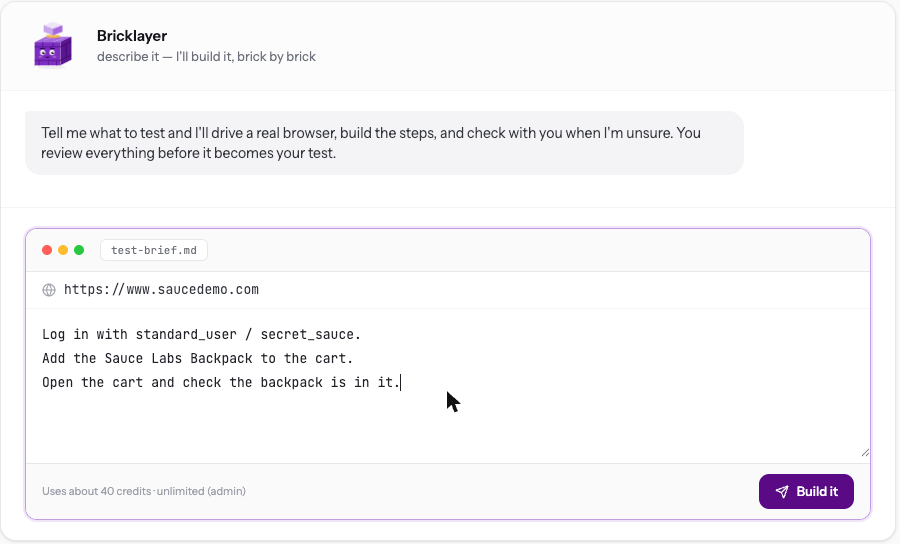
3
Click Build it and watch
A live browser opens. Each step Bricklayer takes appears in the chat on the right, with a picture of the page.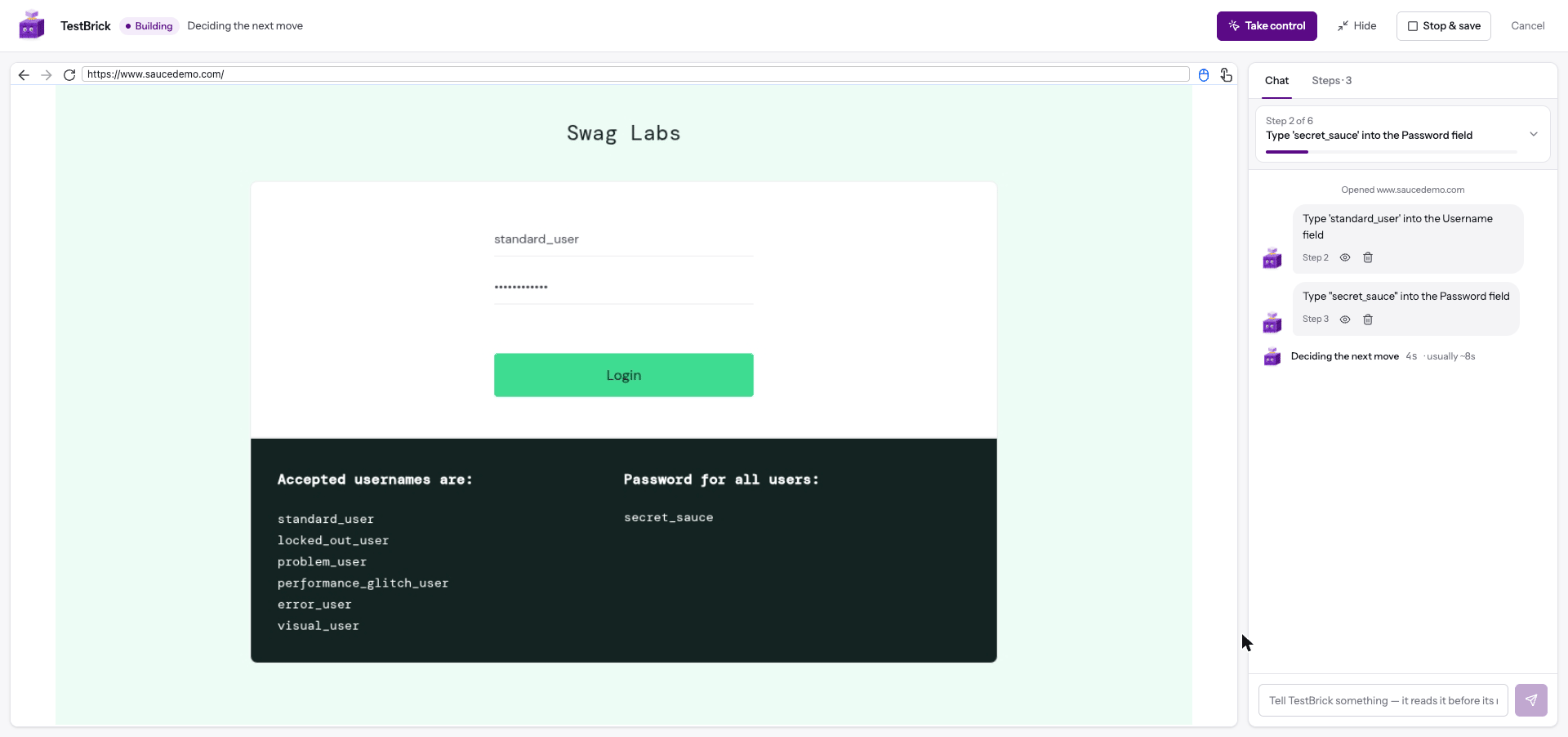
4
Confirm the checks
When it’s done, Bricklayer shows how it will prove the flow still works on every future run — for example “the flow ends on /cart.html” and “the page shows Sauce Labs Backpack”. Untick any check you don’t want, then click Save & verify my test.
5
Watch the first replay
TestBrick replays the saved test once, straight away, to make sure it works on its own. When it’s green, your test is ready.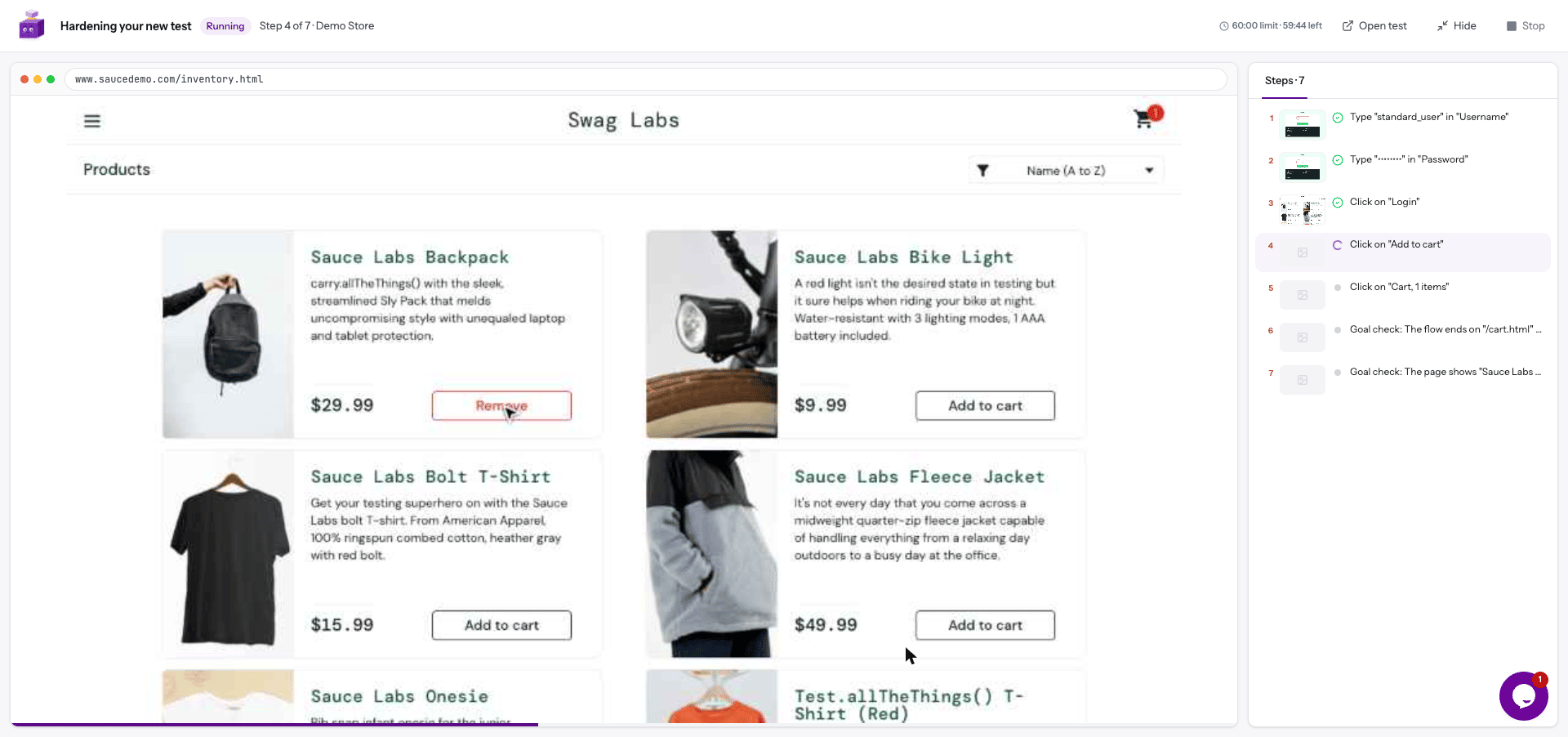
What’s next
More about Bricklayer
Taking control, stopping early, and writing good briefs
Monitor it
Run the test every hour and get an alert when it breaks