

Secrets & 2FA codes
Some flows need things you shouldn’t paste into a test: a password, a transaction PIN, or a code from an authenticator app. Store them once as Secrets in your project. Tests then type them by name — and for authenticator codes, TestBrick makes a fresh code at the moment the test needs it.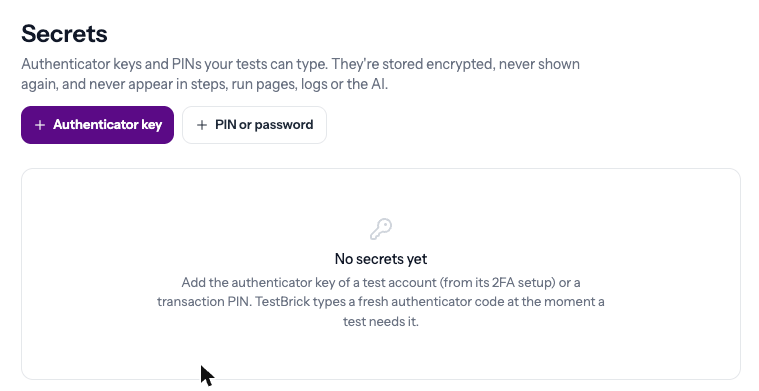
Add an authenticator key
Use this when your app asks for a 6-digit code from Google Authenticator, Authy or similar.1
Get the key from your app
On the test account, turn on two-factor authentication. The app shows a QR code, and usually a “Can’t scan? Enter this key” option. Copy that key — or the
otpauth:// link.2
Add it in TestBrick
Open Secrets at the top of the dashboard, click Authenticator key, give it a name (for example “Staging login 2FA”) and paste the key.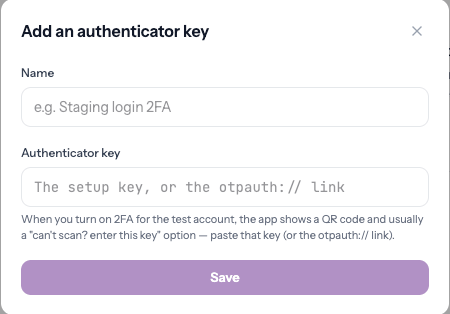
3
Compare the code
After saving, TestBrick shows the code it would type right now. It should match the code in your authenticator app. If it does, you’re set.
Add a PIN or password
Click PIN or password, give it a name (for example “Transaction PIN”) and type the value.Using secrets in tests
- Bricklayer uses them by itself. When a page asks for an authenticator code or a PIN, it types the matching secret. If there’s no matching secret, it tells you which one to add.
- In a step, click the 🔐 chip next to a typed value and pick a secret. The step shows “Type the authenticator code (Staging login 2FA)” — never the value.
- Split code boxes (six separate one-digit boxes) are filled correctly with a fresh code every run.